Bot classification
How to configure filtering strictness for different types of traffic.
|
Available only in Anti-bot mode. This feature is enabled on request. If the Bot classification tab in Custom rules is inactive in the UI, contact support to enable it. |
About the rule group
Description
Bot classification is a group of rules that lets you set a bot score threshold. Request sources with a bot score equal to or higher than the threshold are considered bots.
This lets you control how strict filtering is. In general, it works as follows:
-
Low threshold: protection considers a source to be a bot at the slightest suspicion. Protection is stronger, but some legitimate users may be affected.
-
Medium threshold: filtering has medium strictness.
-
High threshold: only highly suspicious sources are considered bots. The risk of false positives is lower, but some bots may get through.
|
You may also see the term JS score in the UI. It means the same as bot score. |
More about bot score
What is a bot score?
A bot score is a numerical assessment of how similar a request source is to a bot—that is, how similar its technical and behavioral attributes are to signs of automation.
What values can it have, and what do they mean?
From 0 to 1 in increments of 0.1:
-
0—there are no signs of automation. -
From
0.1to0.9—there are signs of automation. The higher the value, the more signs there are. -
1—obvious automation.
You can consider 0.5 to be a mid-range value.
How does protection calculate it?
The process has five stages:
-
The user sends a request.
-
Protection analyzes request telemetry at the L3/L4–L7 levels: it assesses how the request passes through the network, how the connection is established, and what is transmitted over HTTP. It uses this data later.
Examples of attributes
-
Signs of statistical anomalies.
-
Request source reputation.
-
HTTP request parameters.
-
TLS connection parameters.
-
Other attributes that help identify the nature of traffic.
-
-
Protection sends the user a JS challenge—a page with JavaScript code that gives the browser a small mathematical task and collects client environment attributes.
Examples of environment attributes
-
Browser window size.
-
Graphics card attributes.
-
Whether virtualization is used.
-
Support for and operation of different browser APIs.
Allowlisted traffic, such as requests from an IP address on the white list, does not receive a JS challenge and does not have a bot score calculated. This traffic is passed to the resource immediately, without additional checks. -
-
The user’s browser runs the JavaScript code: it sends the answer to the task and the collected environment attributes.
-
Protection checks the answer.
If the answer does not arrive or is incorrect, no bot score is generated, and protection immediately blocks the request.
If the answer is correct, protection analyzes the client environment attributes and compares them with the information received in step 2. It calculates the source’s bot score from all collected data.
Once the bot score is generated, protection compares it with the threshold you set on the Bot classification tab. If the value equals or exceeds the threshold, the source is marked as a bot.
Is a bot score calculated for every source?
No. It is calculated only for sources that receive a JS challenge from protection and complete it successfully.
Does protection retain a source’s bot score?
Yes.
If a request source has completed a JS challenge and received a bot score recently, protection recognizes it in subsequent requests and uses the score already calculated.
What happens to requests from a source whose bot score equals or exceeds the threshold?
By default, protection blocks them. The exceptions are:
-
Requests that match an enforcement rule you created. In the rule settings, you specify what to do with these requests: pass them, block them, return a cookie challenge, return a JS challenge, or return a CAPTCHA.
-
Requests to a location where Anti-bot mode is disabled. Such a request may be passed.
How Bot classification works
-
A request source completes a JS challenge. Afterward, protection calculates its bot score.
-
The source’s bot score is compared with the threshold that you set through Bot classification.
-
If the bot score equals or exceeds the threshold, protection recognizes the source as a bot.
Using several thresholds at the same time
With Bot classification, you can set different bot score thresholds for different types of traffic. If they conflict, the strictest threshold applies.
For example, you create two bot classification rules:
-
Requests to
/login—bot score threshold0.4. -
Requests from Pakistan—bot score threshold
0.2.
A request to /login from Pakistan matches both rules, but protection applies only the second one because its threshold is lower, at 0.2.
Recommendations
-
Remember: the lower the bot score threshold, the stricter the filtering.
-
First, configure a base rule for all traffic.
-
Create separate rules with a lower threshold for sensitive areas of the application.
-
Watch for orange highlighting. It marks rules that do not work because they conflict with other, stricter rules.
-
Do not set a very low bot score threshold without confirming that it is necessary through log analysis. A very low threshold can cause many legitimate sources to be recognized as bots.
-
If you want to specify what protection must do with traffic from bots—block it, pass it, or return one of the challenges—configure Enforcement.
Configuration
Open Bot classification
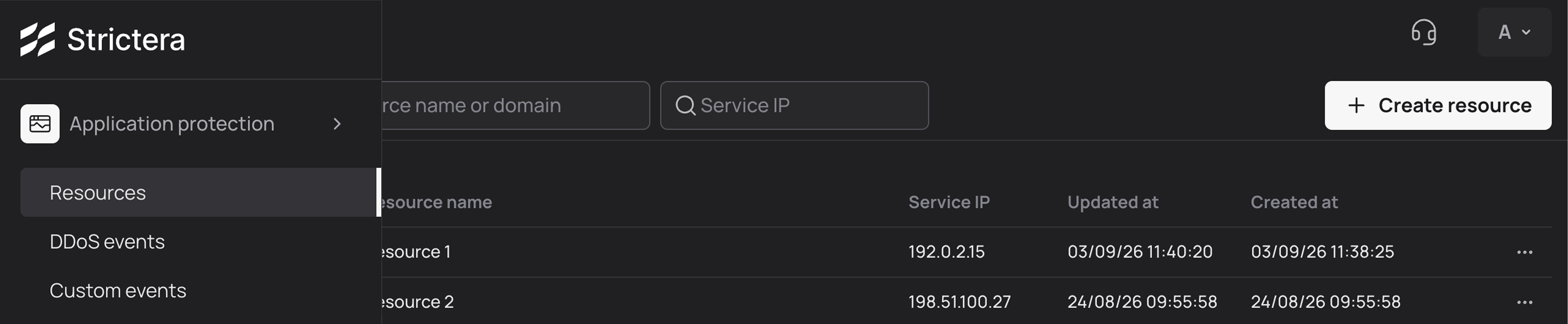
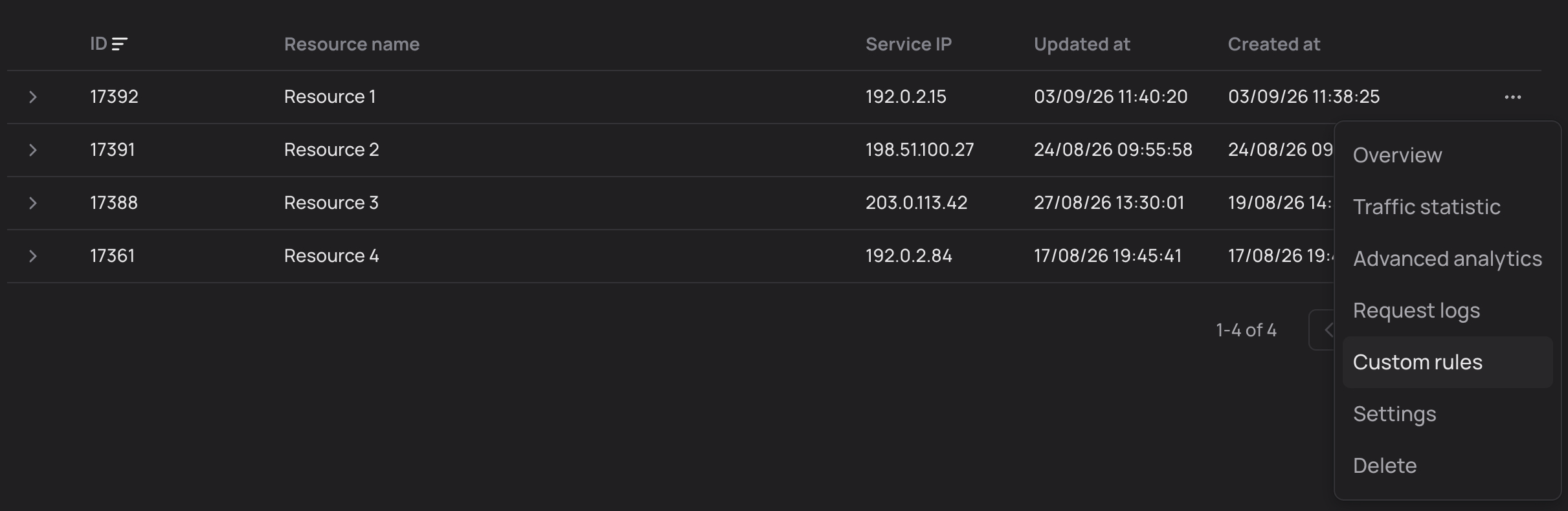
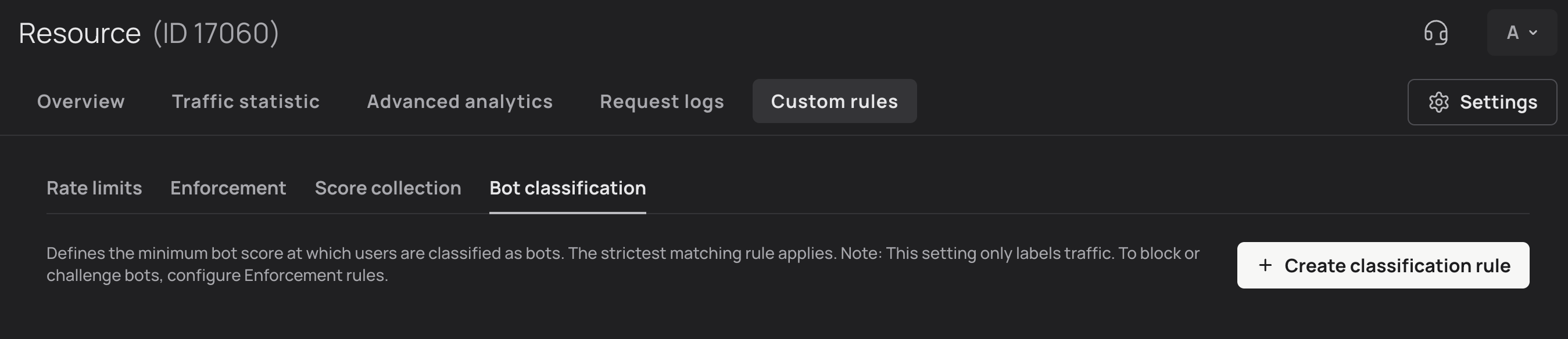
Go to Application protection → Resources. For the required resource, click the ellipsis (…) and select Custom rules. The page that opens contains the Bot classification tab.
Create a classification rule
-
Click + Create classification rule. The rule creation window opens. Complete the remaining steps there.
-
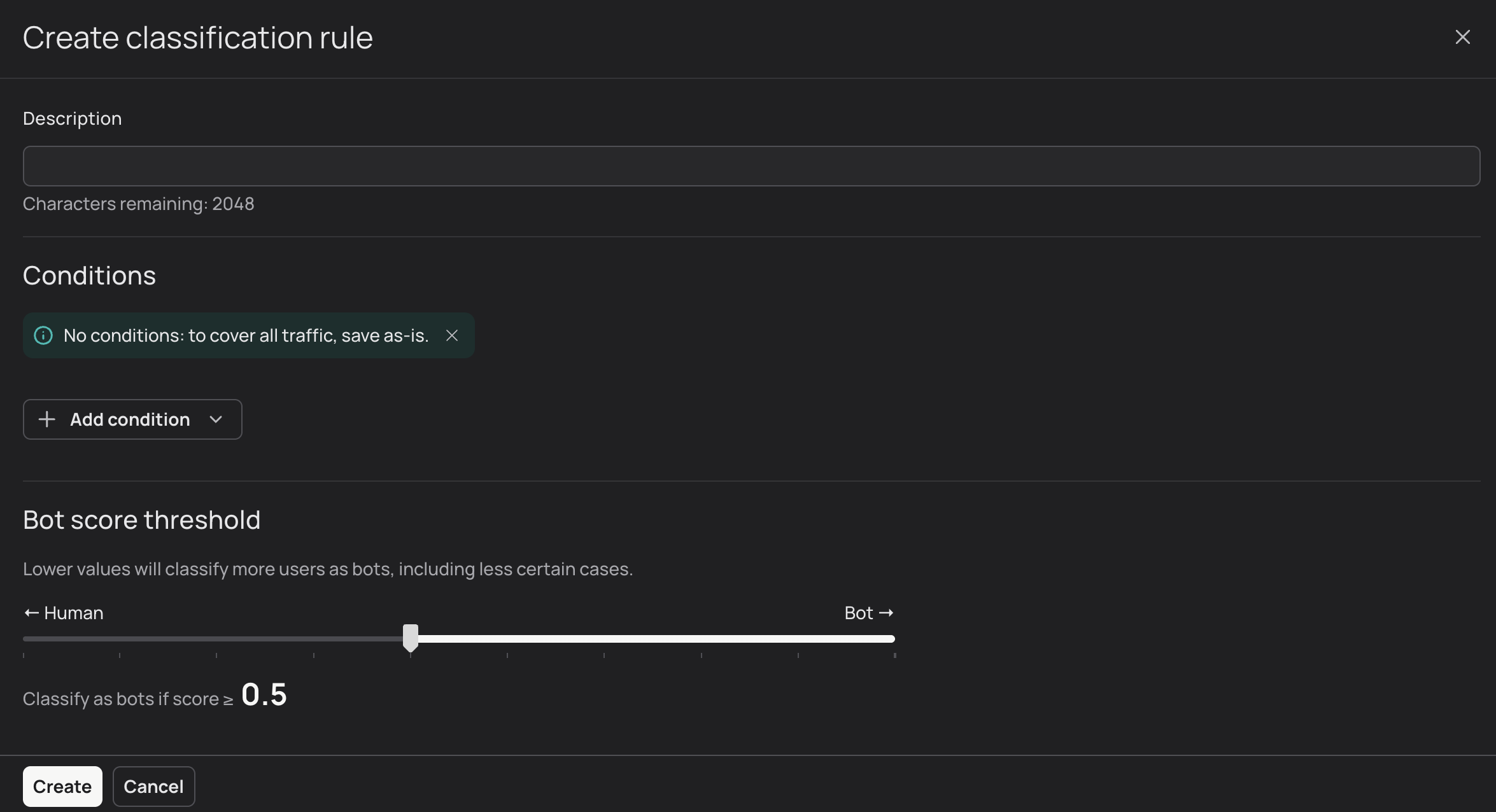
Enter any text in the Description field. This is the name you give the rule.
We recommend stating the traffic for which you configure the rule. Example:
Login page. -
Add Conditions.
The rule applies to requests that meet all specified conditions at the same time. For example, if you configure
Country—GermanyandURL path starts with /login, the rule:-
Applies to sources from Germany that send a request to
/login. -
Does not apply to sources from Germany that send a request to another page.
-
Does not apply to sources from other countries.
To add a condition, click + Add condition, select a parameter such as URL path, select a comparison operator such as equals, and specify a value such as
/panel. -
Parameters: descriptions, value requirements, and examples
| Parameter name | Parameter description | Value requirements | Condition example |
|---|---|---|---|
|
The geographical location of the source IP address. |
Select a value from the drop-down list. |
|
|
Parameters specified in the URL after the |
|
|
|
The request URL path, the part of the URL after the domain and before the |
|
|
|
Any part of a URL path between |
|
|
|
The format of the data sent in the request, such as JSON, plain text, images, or web form data. |
|
|
|
Cookie names and values. The rule applies when the request contains at least one specified name-value pair. |
|
OR
|
|
Cookie names and values. The rule applies when the request contains the entire set of specified name-value pairs at the same time. |
|
AND
|
|
Names and values of HTTP headers.
|
|
|
|
The value of the Host header: the domain name of the server that the client requests. |
|
|
|
Traffic from IP addresses that belong to hosting providers or data centers. |
Not set. |
— |
|
The type of HTTP method used. |
Select one or more methods from the drop-down list. |
|
|
The value of the Referer header: the address of the page from which the user came to your resource. |
|
|
|
The autonomous system number (ASN) to which the source IP address belongs. |
|
|
|
A unique device fingerprint (hash), with one of three available accuracy levels: |
|
|
|
Traffic from users who visit the resource for the first time and whose device fingerprint (hash) has not yet been recorded in our database. |
Not set. |
— |
|
The sender’s IP address or subnet. |
|
|
|
The value of the User-Agent header: an identifier of the browser, device, or software client that sends the request. |
|
|
|
The value of the X-Forwarded-For header: the chain of proxy server IP addresses through which the request passed before reaching your resource. |
|
|
|
Traffic from the Tor network, which hides the source’s real IP address. |
Not set. |
— |
Description of operators
| The available operators depend on the selected parameter. |
| Operator | When the rule applies |
|---|---|
|
When the value matches exactly. Example: you specify |
|
When the value does not match the specified value. Example: you specify |
|
When the value contains the specified character sequence. Example: you specify |
|
When the value does not contain the specified character sequence. Example: you specify |
|
When the value starts with the specified character sequence. Example: you specify |
|
When the value does not start with the specified character sequence. Example: you specify |
|
When the value ends with the specified character sequence. Example: you specify |
|
When the value does not end with the specified character sequence. Example: you specify |
|
When the value belongs to the specified list. Example: you specify |
|
When the value does not belong to the specified list. Example: you specify |
|
When the parameter has no value. Example: you specify |
|
When the parameter has a value. Example: you specify |
|
With any parameter value. Example: you specify |
-
Set the bot score threshold.
Remember:
-
A bot score is a numerical assessment of how similar a request source is to a bot—that is, how similar its technical and behavioral attributes are to signs of automation.
-
Protection classifies sources whose bot score equals or exceeds the threshold as bots.
A mid-range bot score threshold is 0.5. Values above it can be considered soft filtering; values below it are stricter filtering.
If you are unsure which bot score threshold to set, contact support. Our specialists will help you configure the rule.
-
-
Click Create.
The rule is created. It appears in the list on the Bot classification tab. To activate it, turn on the switch in the Enabled column. It must turn white.

|
If your rule applies to all incoming traffic, it has the green All traffic label next to it. |
Configuration examples
Base classification for all traffic
Goal: classify sources as bots when their bot score is 0.7 or higher.
Configuration:
-
Conditions: none.
-
Bot score threshold:
0.7.
The 0.7 threshold is set for all traffic. The exception is traffic for which you configure special rules with stricter filtering.
Stricter classification for the administration panel
Goal: apply stricter classification to traffic sent to the administration panel.
Configuration:
-
URL path contains
/admin. -
Bot score threshold:
0.4.
The rule sets a 0.4 threshold for requests to the administration panel. It does not affect requests to other paths.
Separate classification for API endpoints
Goal: configure softer filtering for API endpoints.
Configuration:
-
URL path starts with
/api/. -
Bot score threshold:
0.75.
The rule sets a 0.75 threshold for requests to API endpoints. It does not affect requests to other paths.
|
Check whether you have a stricter rule for all traffic. If you do, the softer rule does not work: the settings conflict, and protection uses the lowest threshold. |
Management
Open the Bot classification tab. There, you can manage the rules you created:
-
Enable or disable: in the row of the required rule, turn on or off the switch in the Enabled column. White means the rule is active and participates in filtering; gray means it is inactive.
-
Edit: click the ellipsis (
…) next to the required rule and select Edit. -
Delete: click the ellipsis (
…) next to the required rule, select Delete, and confirm the deletion.
